Within a consolidation in Spotlight Reporting, if you need to set up fractional or partial ownership of an entity, you can set the required percentages within the consolidation settings to automatically handle the split. All values for the entity will then be reported at the percentage you need.
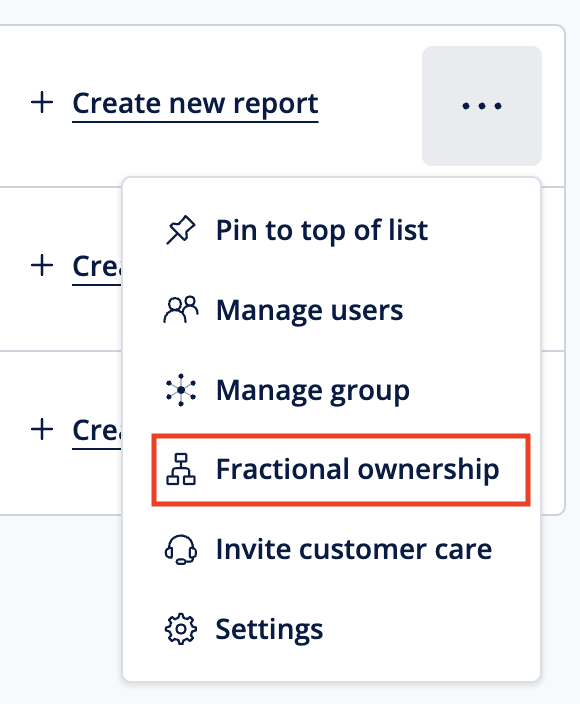
From the main Spotlight screen, click the three dots next to the organisation name, then click Fractional Ownership.
Alternatively, within the Customise Data tab for the group click Edit Fractional Ownership.
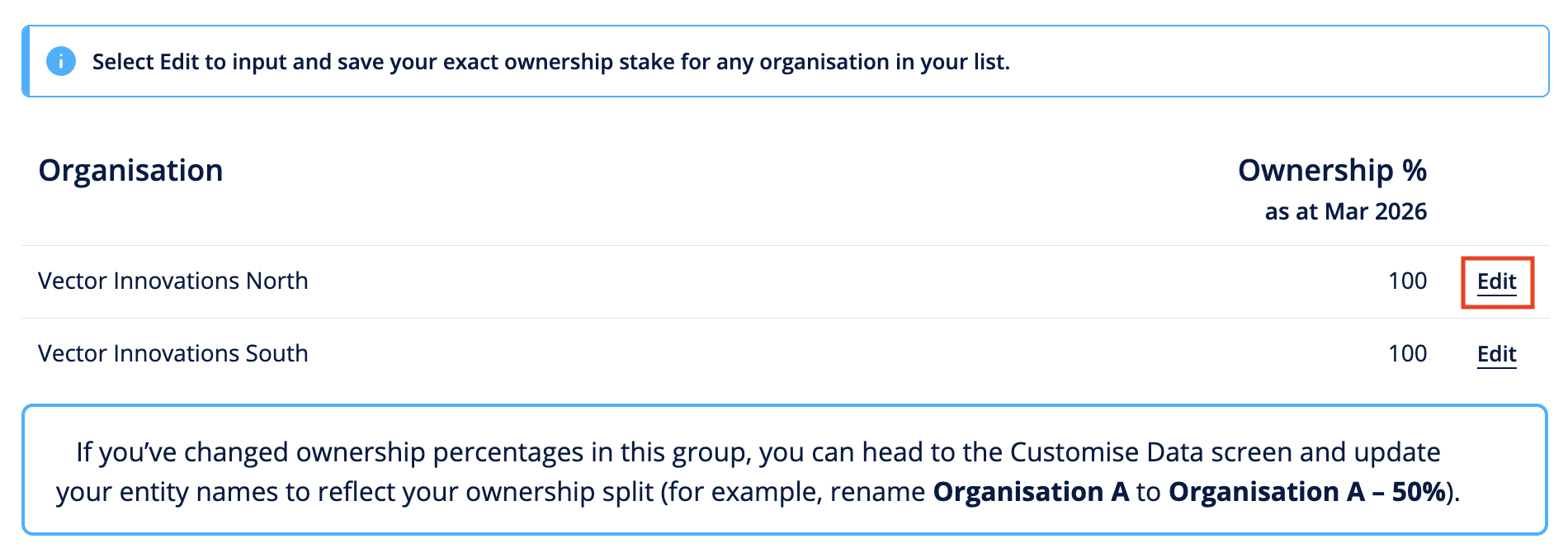
This opens the Fractional Ownership tab within the group settings, and you can now set up the required percentages.
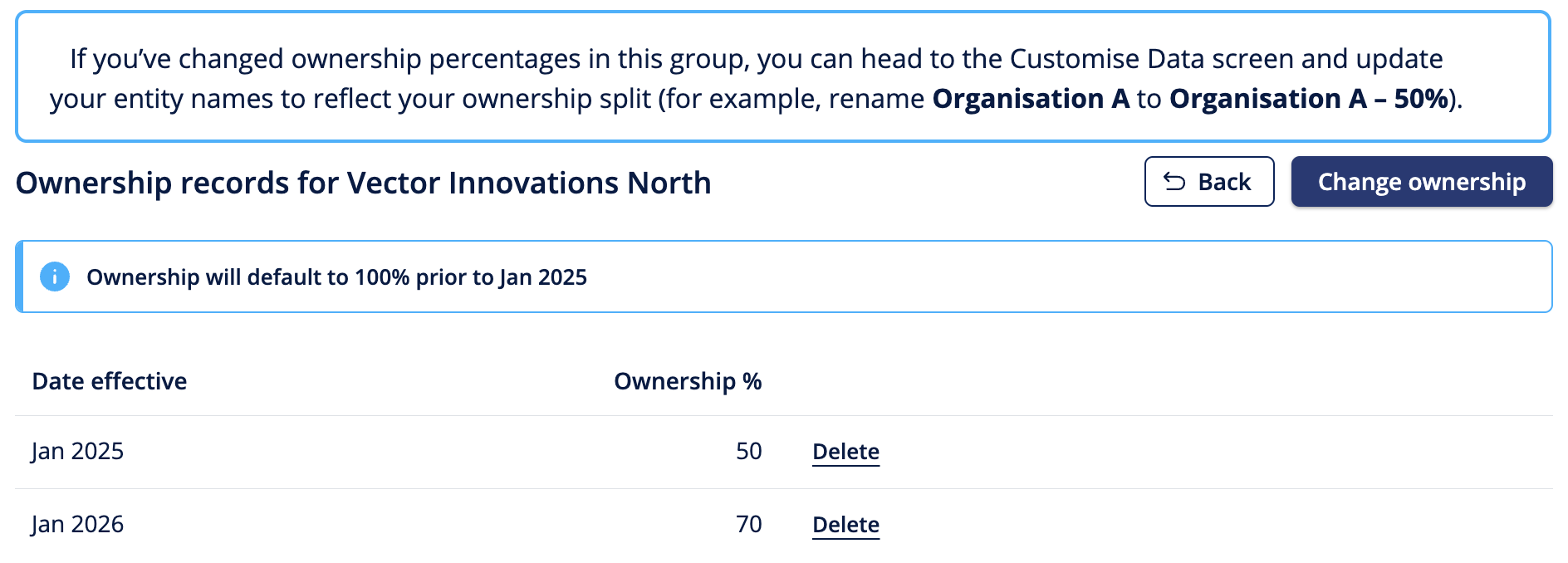
For any entity where you need to set a percentage, click the Edit link. This opens the Ownership records screen.
Click Change ownership.
Enter the following information:
Effective date - The date at which the fractional ownership took effect. For any values held before this date, the ownership will default to 100%.
Ownership % - The percentage of the entity owned.
Once you’re ready, click Save.
If required, you can repeat the process to include a different percentage as of a different date. For example, if the entity was 50% owned from January 2025 but became 75% owned as of January 2026, you can enter both dates. The ownership records will then show both dates and the percentage involved, and the reports will include the values as needed.
How this appears in the consolidation
When viewing the data within the consolidation, there are a couple of things to be aware of:
Report values - The columns and appearance of your consolidated report remain the same, however for the entity where you have amended the ownership records to include fractional ownership, the values will reflect this. If the ownership percentage changed partway through the year, the year to date values will reflect the total of each month at each month’s correct percentage.
Data grid values - In the Customise Data grid, the original 100% values as imported into Spotlight still appear.