You can bring data directly into Spotlight from Sage Intacct. When you import data from Sage Intacct for the first time, you must set up the connection and authorise Spotlight to connect to your data. This is an easy process and normally only needs to be done once. In the following months, you can simply import the updated data.
To set up Sage Intacct to allow the connection
Before you can make the connection between Spotlight and Sage Intacct, you must ensure that Sage Intacct is set up to allow external applications to use the API to connect.
Open Sage Intacct and from the Applications drop-down list, choose Company.
From the right-hand panel ensure that the Admin tab is selected, then click Subscriptions.
Ensure that the switch for Web Services is set to the on position.
Tip: This option appears at the bottom of the list.
To connect to Sage Intacct
Note: To be able to import the data to Spotlight, you must have the full Admin privileges in Sage Intacct.
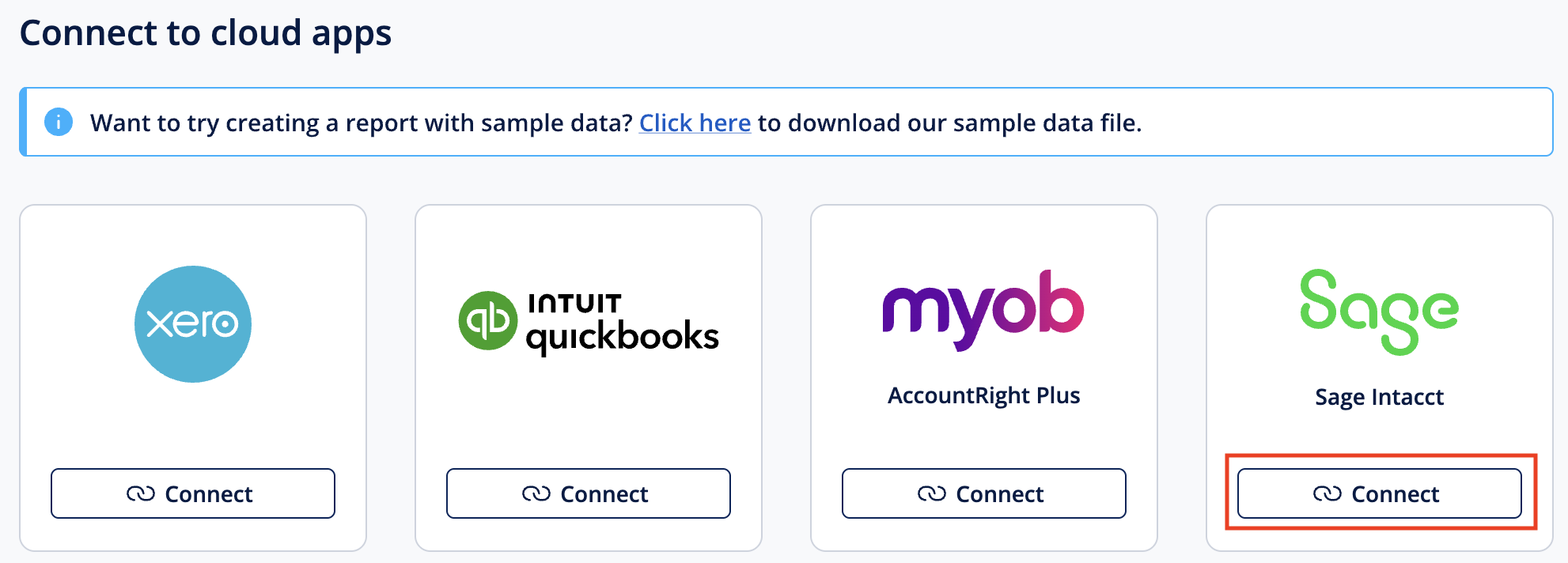
From the Import tab, click the Connect button underneath Sage Intacct. Alternatively, if you've already added another data source, from the Import tab click Add another data source, then click the Connect button underneath Sage Intacct.
A message appears to prompt you to connect to Sage Intacct. Click Continue.
If required, enter your Sage Intacct login details then click Log in.
Note: If you're already logged in to Sage Intacct, the login window may not appear and you can continue to the next step.
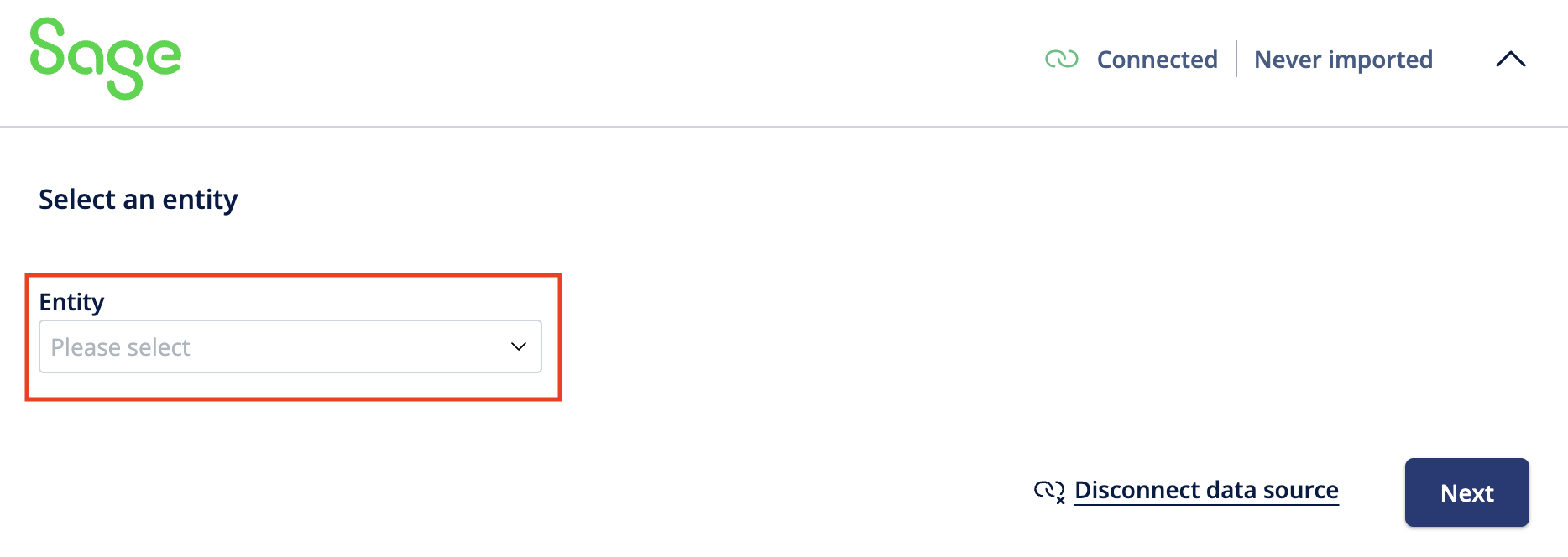
Once the authorisation is complete, you are redirected back to Spotlight. If your login has access to more than one entity in Sage Intacct, select the entity from the drop-down list, then click Next.
You’re now ready to import your data.
To import your data
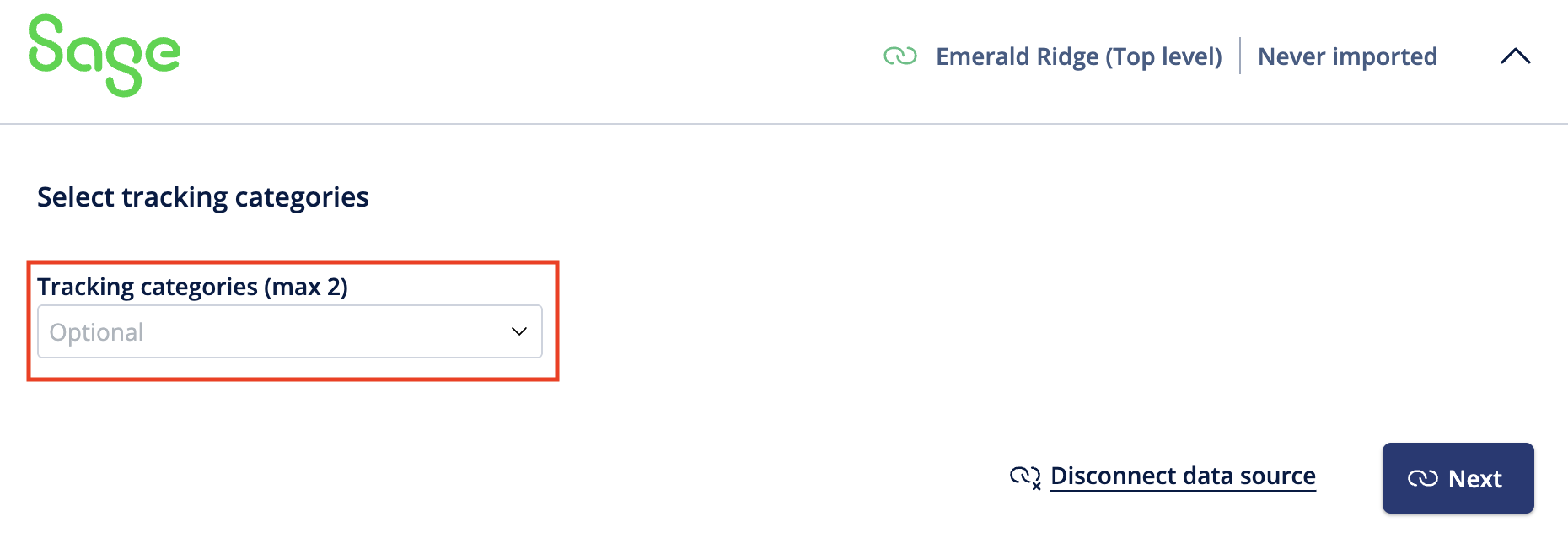
If you need to report on dimensions from Sage Intacct such as projects or departments, from the Select Tracking Categories drop-down list, choose a maximum of two dimensions to import, then click Next.
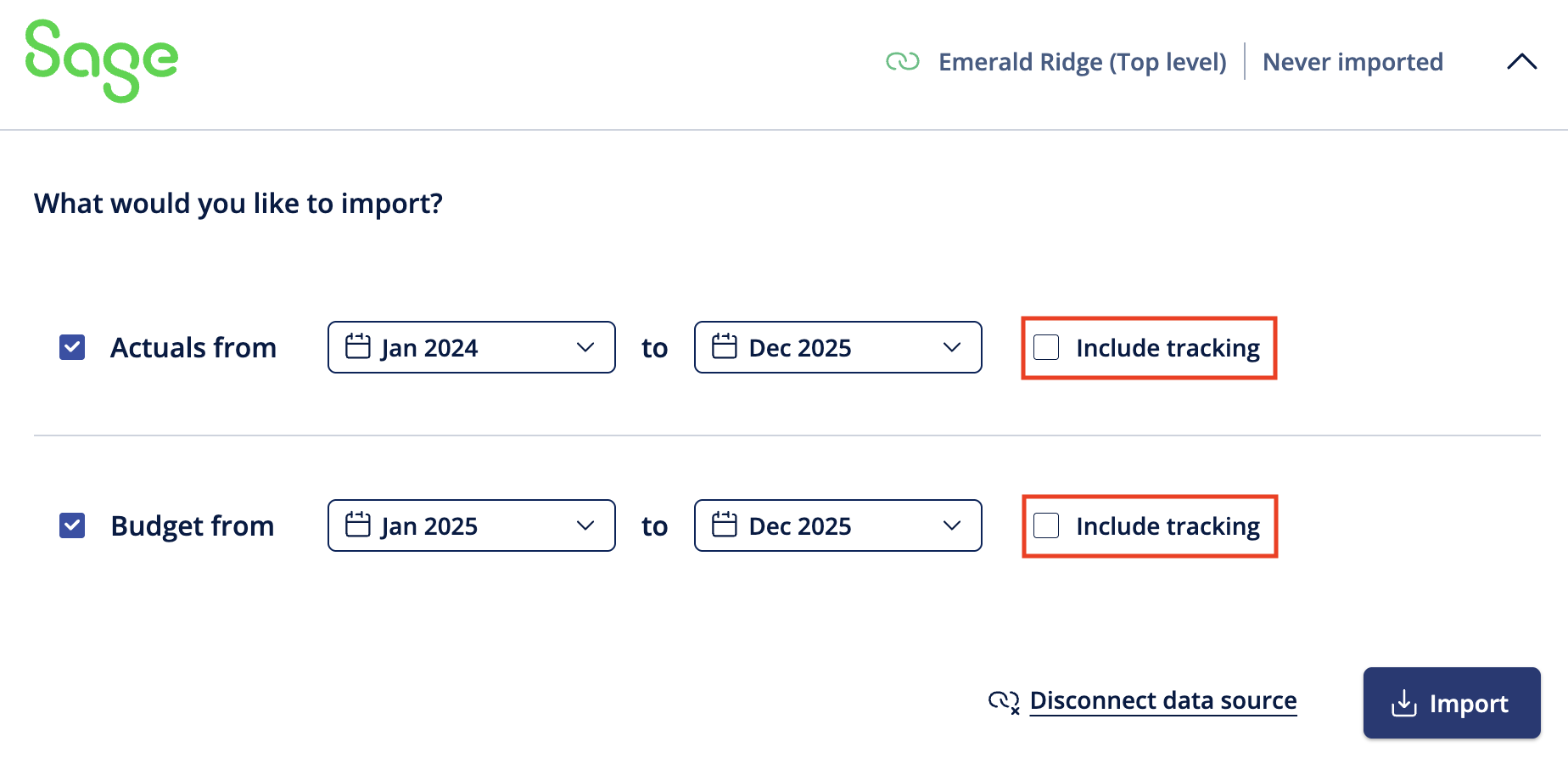
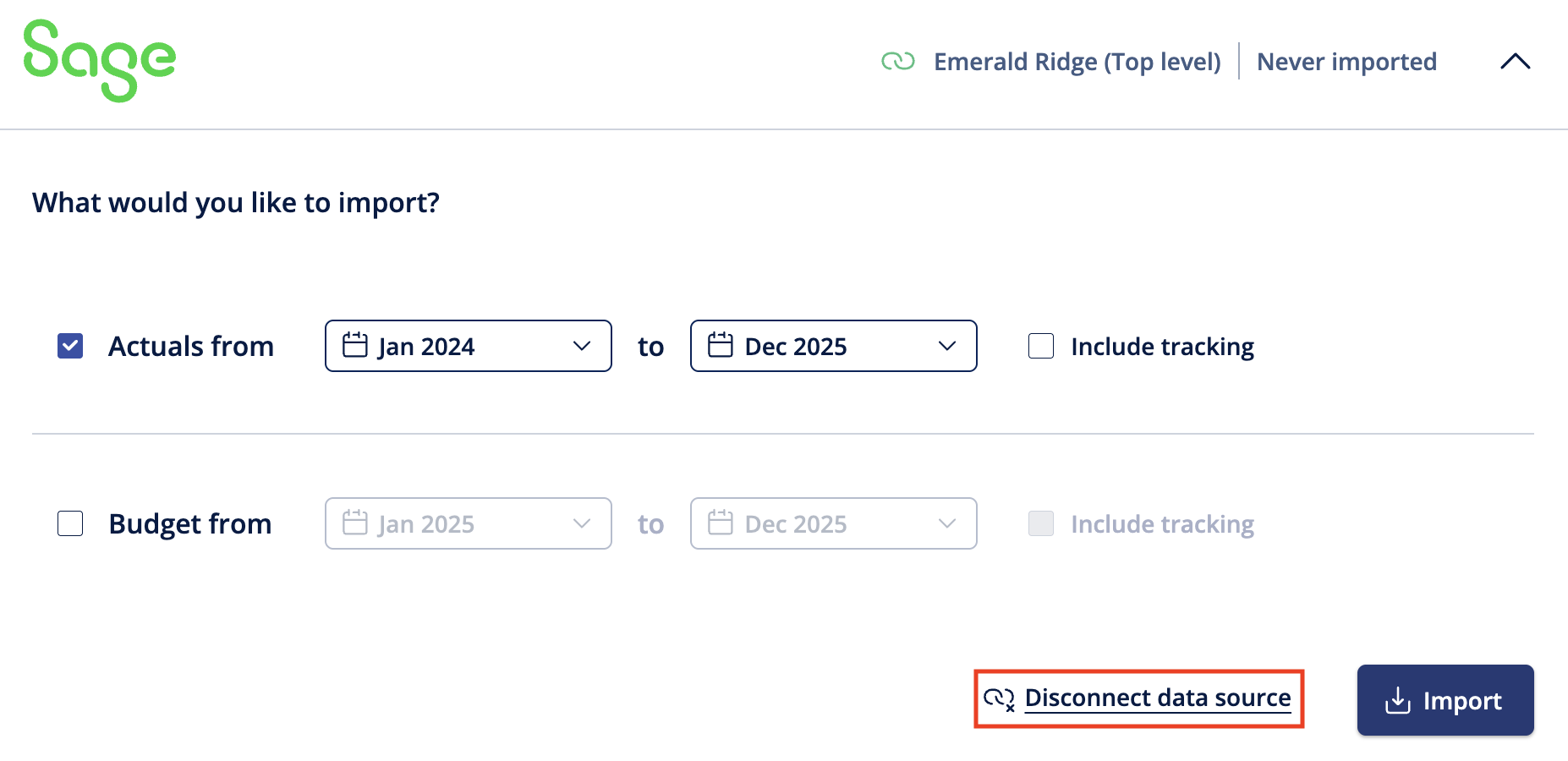
Select the check boxes to import the actual or budget data.
If you’re importing dimensions, select the 'Include tracking' check box alongside the Actuals row. If required, you can also select the check box against the Budget row.
For each item, enter the date range you want to import.
Note: The first time you import, this should include any history you want to bring into Spotlight. You can import the current financial year, and up to three previous years. After the first import, you need only import the date range which has been updated in Sage Intacct.
To continue, click Import.
The first time you import, the process may take a few minutes. In subsequent imports, to speed up the process you can bring in only the updated date range. If you reimport data for a range you've already imported, the new data replaces the old information.
Types of data
You can import the following types of data into Spotlight:
Actuals - Monthly accrual and cash information from Sage Intacct. You can import the current financial year, and the three previous financial years.
Budgets - The budget information held in Sage Intacct. You can import this on the overall level, or to include the additional budgets for the dimensions in Sage Intacct.
Dimensions - Additional actual and budget data from the dimensions in Sage Intacct, such as projects or departments. If you import this information, you'll be able to use this to filter your reports and charts - for example to show a chart for a single department. To include this, select the 'Include tracking' check box alongside the Actuals or Budgets options.
To remove the connection to Sage Intacct
Without removing the data
If you want to disconnect without removing the data, from the Import tab click the ‘Disconnect data source’ link, then when prompted, click Disconnect.
This does not remove the data from Spotlight. If you want to delete the data, please refer to the following section.
To delete the data source
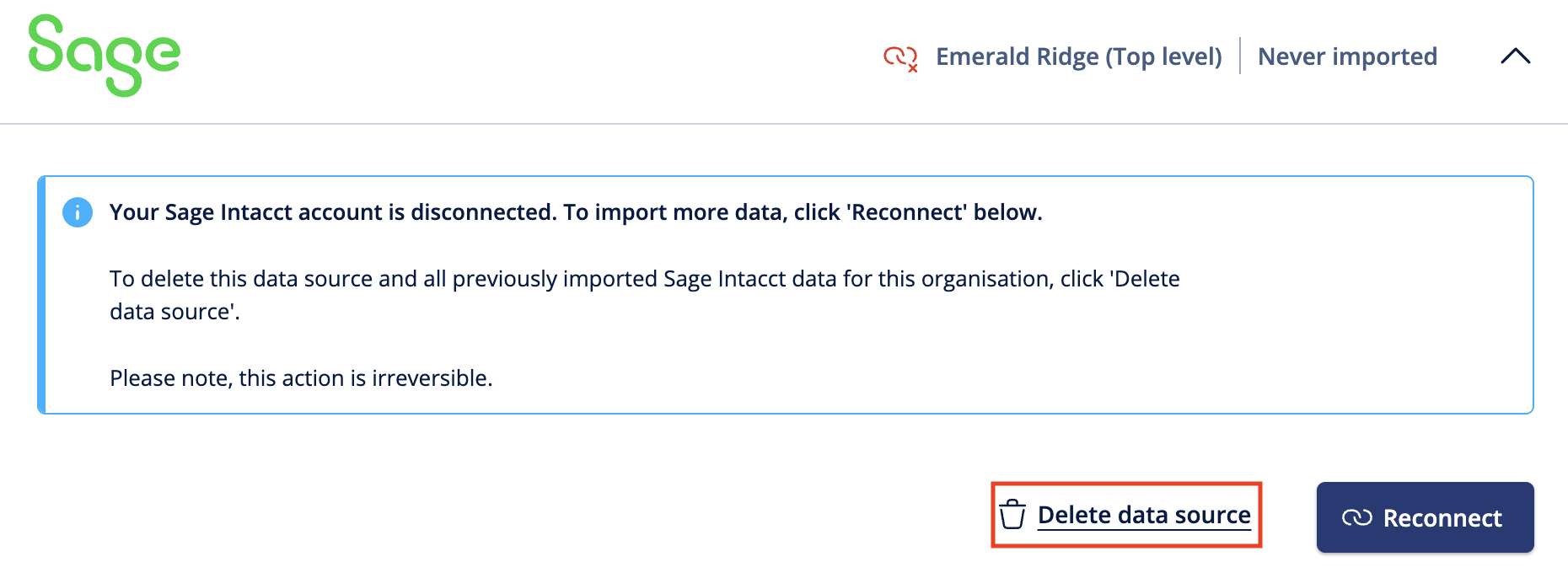
If you want to delete the data from the Customise Data tab entirely, first click the ‘Disconnect data source’ link, then when prompted, click Disconnect.
You can then click the ‘Delete data source’ link, and when prompted, click Delete data source.
Note: This action cannot be undone.
Frequently asked questions
I need to change the tracking options I selected, can I do this?
As these options are selected when you add the data source, if you need to change which tracking options you’re using, you will need to delete the data source and then add it again. You’ll then be prompted to select the tracking options and can choose the new ones you need.
Note: You will need to re-do any changes made to report codes or Spotlight Display Names after you add the data source again.
I've been importing data via Excel or Google Sheets and want to switch to importing direct from Sage Intacct. How can I do this?
You can start importing from Sage Intacct without removing your Excel or Google Sheets data source if you prefer. To do this, click 'Add another data source' from the Import tab and follow the steps to import your data, ensuring that you start the import date range after the last date to which the data was imported from Excel or Google Sheets.
Note: You may prefer to set a lock date to prevent importing for the period already covered by your old data source, or alternatively you can remove the old data source and import all data directly from Sage Intacct.