
When you work in Spotlight Forecasting, you can prepare and amend your budget values. If you also use Spotlight Reporting for the same organisation, you may prefer to take this budget into the Reporting module for use in your management reports.
Note: If you haven't yet set up your budget in Spotlight Forecasting, for details on how to do this please refer to our Spotlight Forecasting Help Centre.
Before you can use your forecast data as your budget, you must set up the connection to the forecast. This is an easy process and only needs to be done once. In the following months, you can simply import the updated data.
Note: You can set up a maximum of two Spotlight Forecasting data sources in each organisation. For example. you can import both your 'Original Budget' and 'Reforecast Budget' from Spotlight Forecasting for use in your reports.
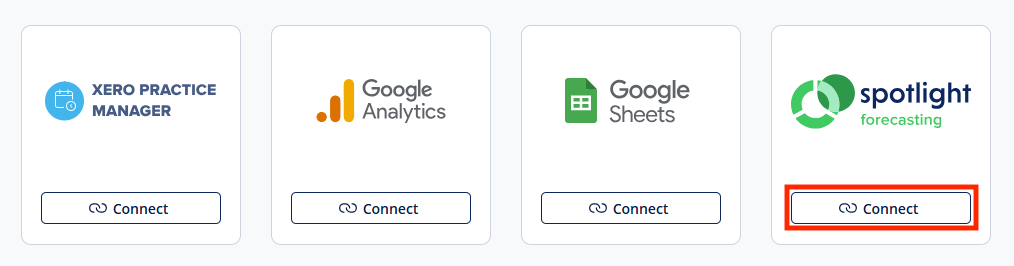
You are now ready to import your forecast data.
Once the import completes, a message appears to let you know this was successful. To select where you want to use this data in your report, please see the following section.
Before you can use the data in your report, you will need to select where your Spotlight Forecasting budget values should appear.

For each option, you can choose to use either the Spotlight Forecasting budget you've imported, or the original budget imported from your accounting system or spreadsheet.
Once you've added the budget as a data source, this does not automatically update if you update your forecast. Instead, you must reimport your data.
The data is then updated with the most recent values from your forecast.
If you no longer need the Spotlight Forecasting data in your report, you can remove the data source from within Spotlight Reporting.
Note: This removes the data from Spotlight Reporting only. It will not remove the data from Spotlight Forecasting, and you can add this again at any time.
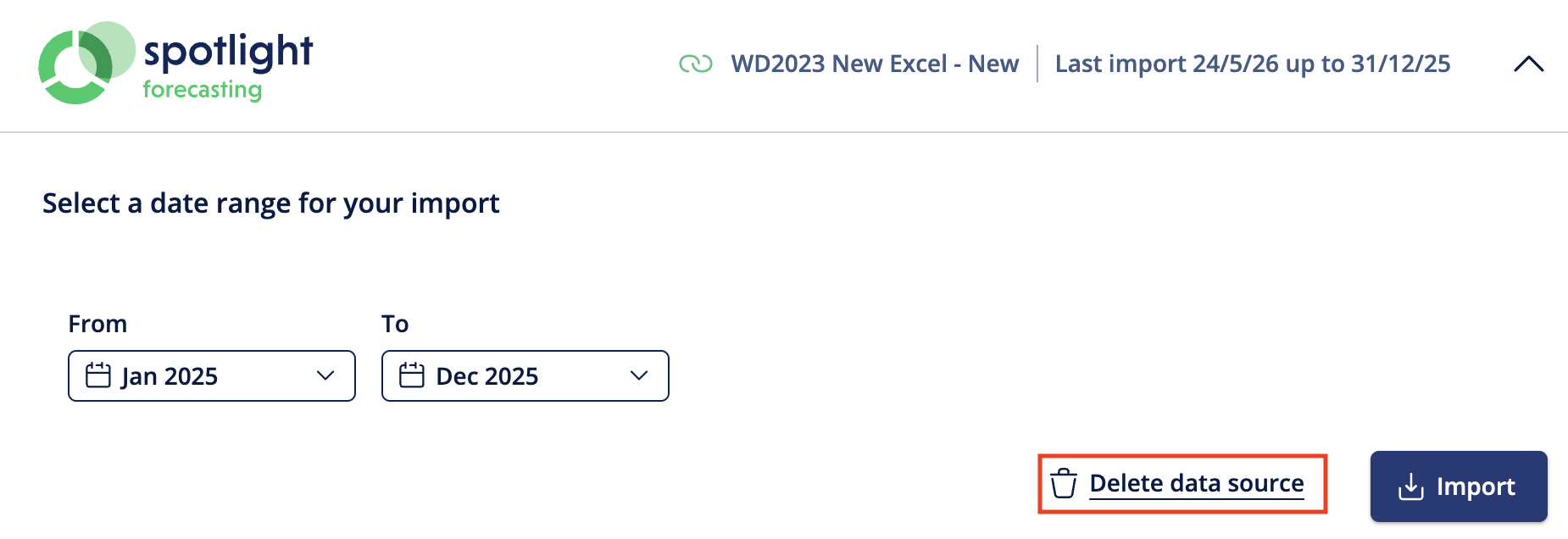
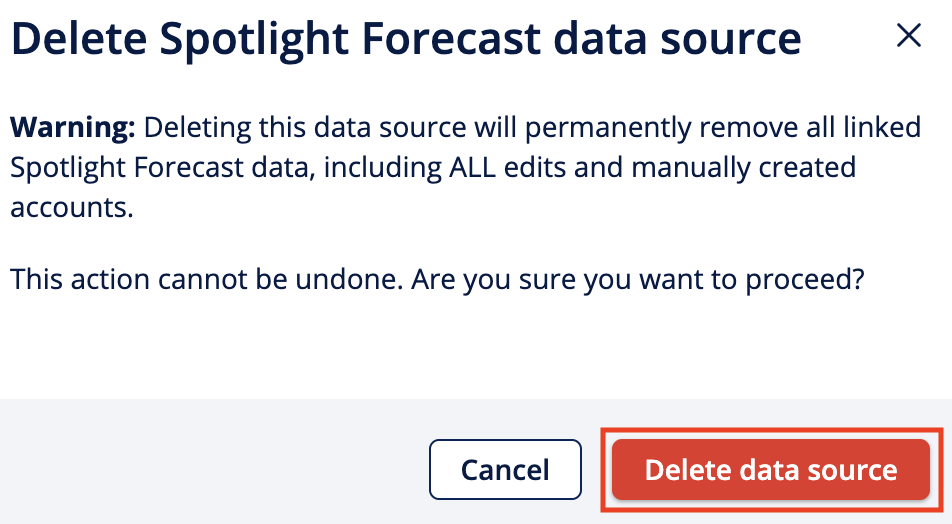
The data source is now removed, and the Budget & Projection settings area is no longer available in the Customise Data tab. The imported budget from your accounting system or spreadsheet will now be used for both the budgets and projections in your report.


