You can bring data directly into Spotlight from Digits When you import data from Digits for the first time, you must set up the connection and authorise Spotlight to connect to your data. This is an easy process and normally only needs to be done once. In the following months, you can simply import the updated data.
To connect to Digits
When you import data from Digits for the first time, you must set up the connection and authorise Spotlight to connect to your data. This is an easy process and normally only needs to be done once. In the following months, you can simply import the updated data.
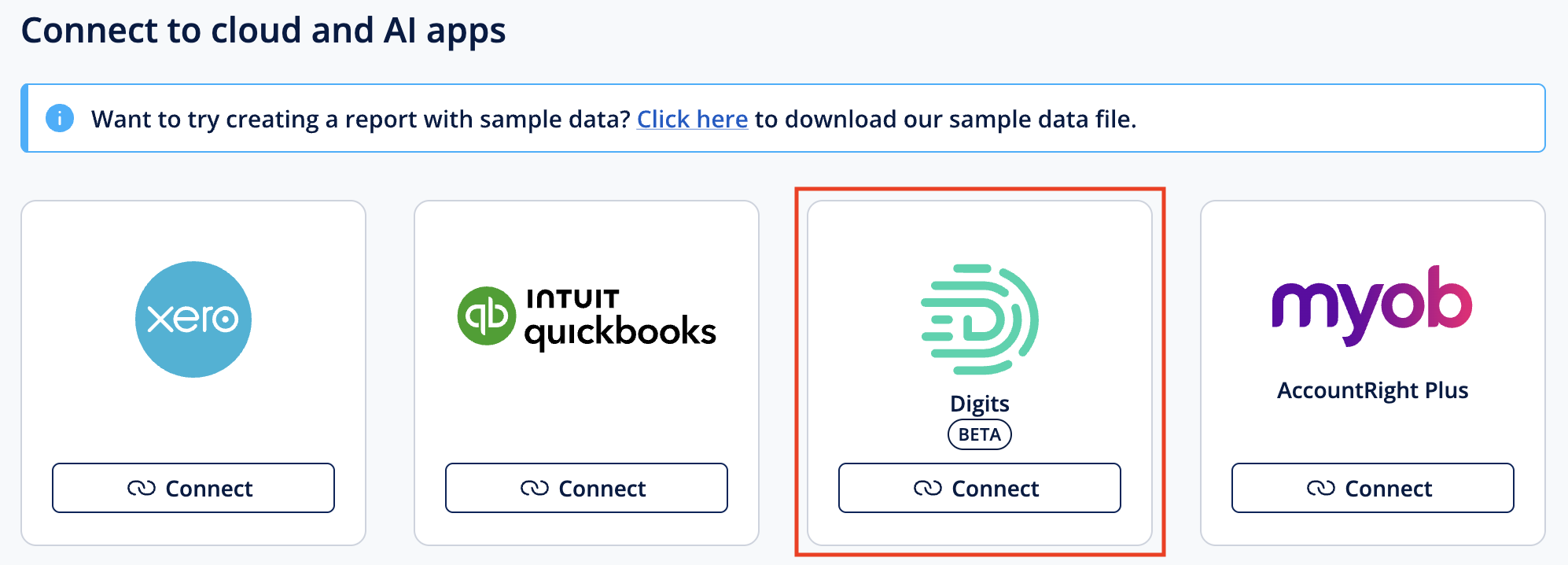
From the Import tab, click the Connect button underneath the Digits data source. Alternatively, if you've already added another data source, click Add another data source, then click the Connect button under the Digits data source.
A message appears to prompt you to connect to Digits. Click Continue.
If required, log in to Digits. Note: If you're already logged in to Digits, the login window may not appear and you can continue to the next step.
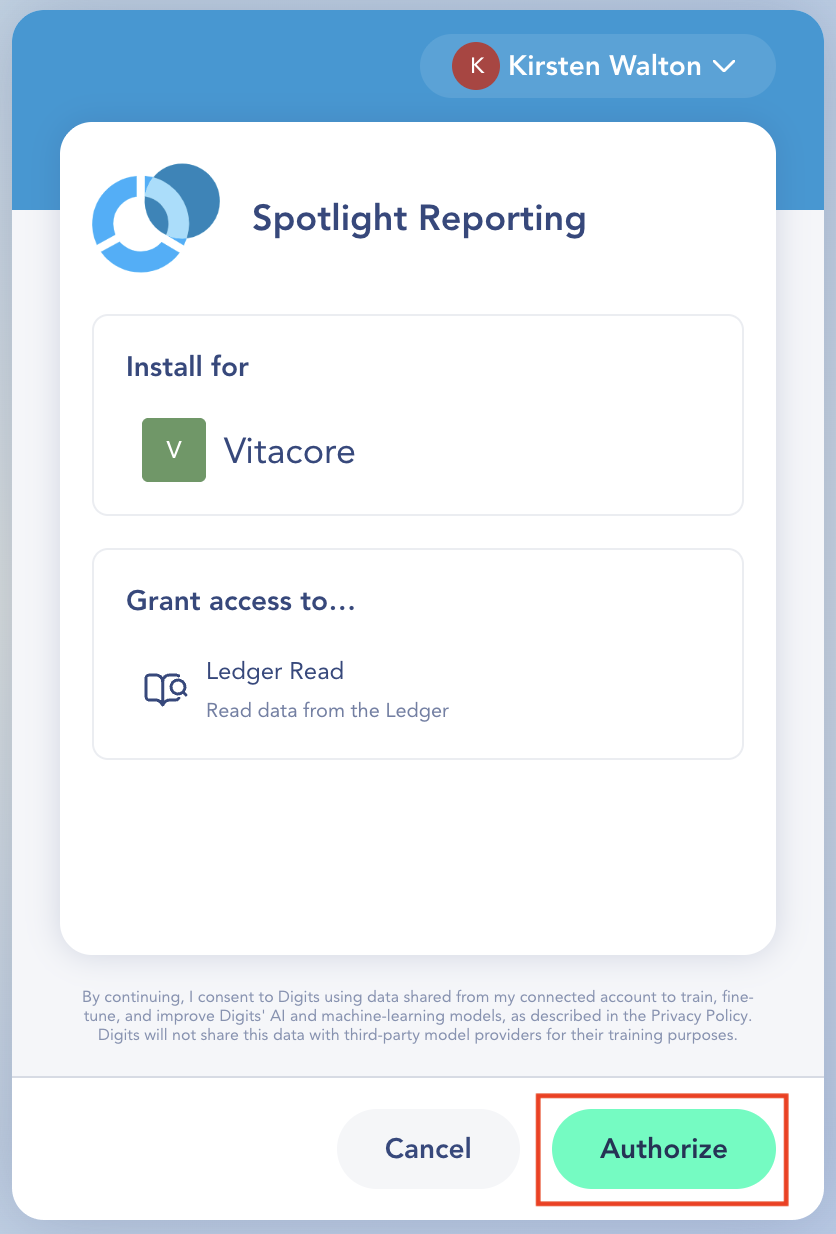
Check that the correct organisation appears, then click Authorize.
Once the authorisation is complete, you are redirected back to Spotlight and can now import your data.
To import your data
From the Import tab, enter the date range for which you want to import data.
For each item, enter the date range you want to import. Note: The first time you import, this should include any history you want to bring into Spotlight. You can import the current financial year, and up to three previous years. After the first import, you need only import the date range which has been updated.
To continue, click Import.
The first time you import, the process may take a few minutes. In subsequent imports, to speed up the process you can bring in only the updated. If you reimport data for a range you've already imported, the new data replaces the old information.
To remove the connection to Digits
To disconnect from Digits
Note: This process does not remove the data from within Spotlight. Instead, it removes the authorisation to connect to Digits. If you import data again within Spotlight, you'll be prompted for your login details. If you'd like to remove the data from Spotlight, please refer to the next section.
Log into the organisation in Digits.
From the sidebar, click Connections.
Locate Spotlight Reporting, then click Manage.
Click the Archive button, then to confirm click Archive.
If required, you can also delete the archived connection.
To remove the data from Spotlight
Note: This permanently removes the Digits data from Spotlight, along with any report code or Spotlight Display Name changes you've previously made.
Open Spotlight and access the required organisation.
From the Import tab, click the Digits data source then click Disconnect data source, then to confirm, click Disconnect.
To remove the data, click Delete data source.
A message appears to confirm. To continue, click Delete data source.
Note: This cannot be undone. If you need the data source again, you will need to add it from scratch.
Troubleshooting - Data not importing
If your data doesn't import as expected, there are a few areas to check:
Lock Date (does not apply to Spotlight Forecasting) - In the Customise Data tab, check the cells for the period you're importing. If a lock icon appears against the cells, you must change the lock date for the organisation, then try the import again. You can do this from Organisation Settings.
Amount of data - If you're importing for a large data set, try importing for a smaller period of time, for example two months. If this works, continue importing your data in small increments.
If the import still fails, please contact us. Please include the text of any error message that appears, and the results of the above checks.